Flexspeak’s Translate Mode turns the words you select on your board into natural speech in another language. But “natural” depends on who you’re talking to and where you are. Custom Prompts let you steer the translation so it matches the right tone, register, and context—without changing the words you tap.
The Problem: One Translation Doesn’t Fit All
Machine translation usually aims for a single “correct” output. For everyday conversation, that’s not enough. The same phrase can sound wrong—or even rude—if the formality or context doesn’t match the situation.
Real-world examples
Vietnamese
How you refer to yourself and the listener depends on relationship and age. For example, when speaking to an elderly woman you might use con (I, as the younger person) and bà (you, addressing her). A generic translation might use the wrong pair (e.g. tôi / bạn) and sound disrespectful or oddly distant.Spanish
There’s tú vs usted, and big differences between regions (e.g. Spain vs Mexico vs Argentina). You might need formal usted with a doctor but casual tú with a friend, or you might want consistently Mexican or Peninsular Spanish.Korean
Speech levels (해요체, 합니다체, 해체, etc.) and endings (-아요/-어요 vs -습니다/-ㅂ니다) signal respect and context. A neutral or overly formal default can sound stiff or distant in daily situations.
In an AAC context, the goal is to sound like you in that language—appropriate to the listener and the moment. Generic translations often don’t do that.
How Custom Prompts Solve It
Custom Prompts are short instructions you add to Translate Mode. They are sent to the translation model as “Additional instructions from the user” and shape how the translation is phrased—tone, formality, dialect, and who the speaker is talking to—without you having to say this every time.
Under the hood:
You set a system prompt (applies to all target languages) and/or per-language prompts (e.g. only when translating into Vietnamese, Spanish, or Korean).
When you use Translate Mode, Flexspeak combines the right prompt(s) with the phrase you selected and sends them to the translation API.
The model keeps the meaning but follows your instructions (e.g. “speaking to an elderly woman,” “use formal usted,” “use 해요체”).
So you get one place to say “when I translate into Vietnamese, I’m usually speaking to my grandmother” or “when I translate into Spanish, I want formal register,” and every translation in that language follows that rule until you change it.
How to Use Custom Prompts
Where to find it
Turn on Translate Mode (so the message bar shows the translation).

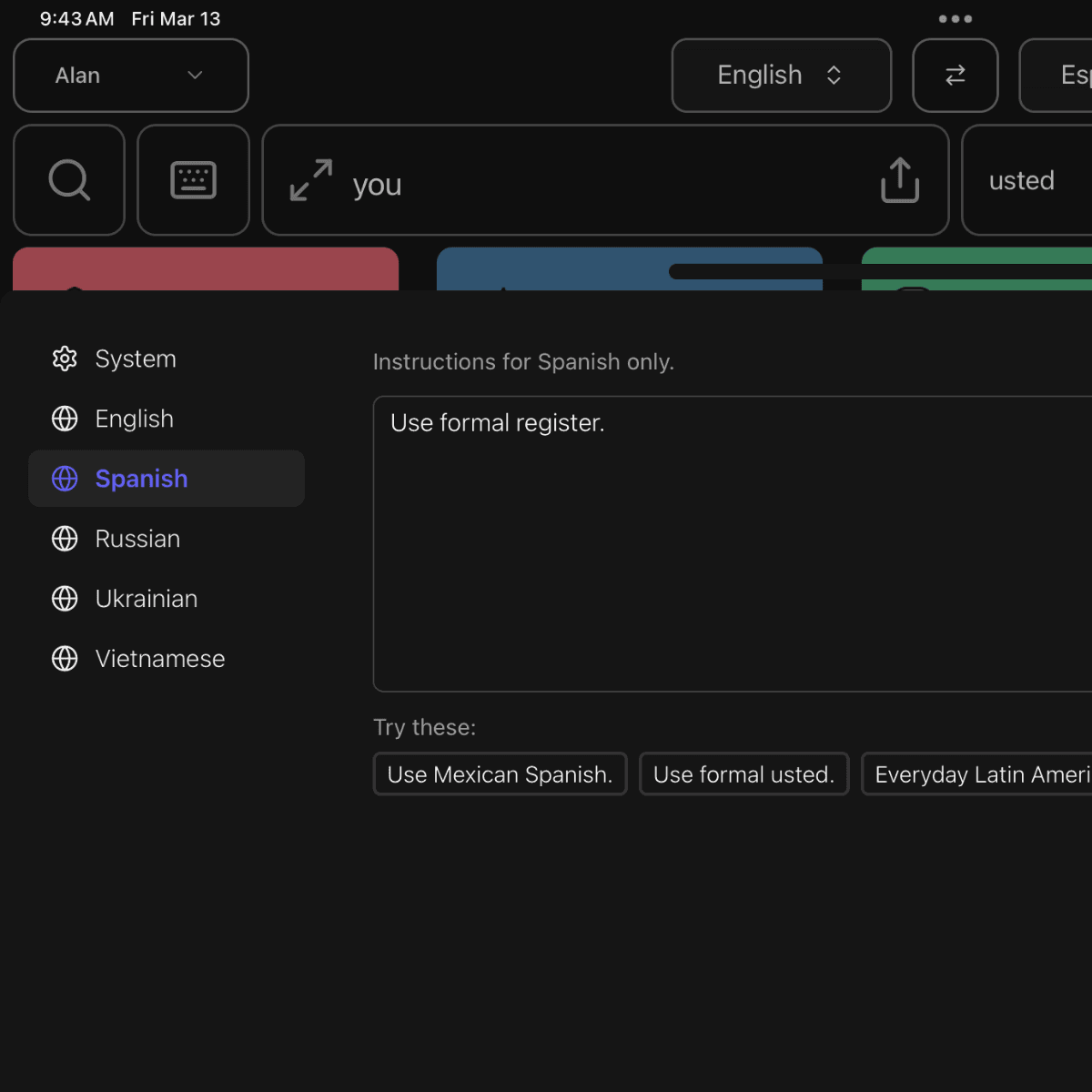
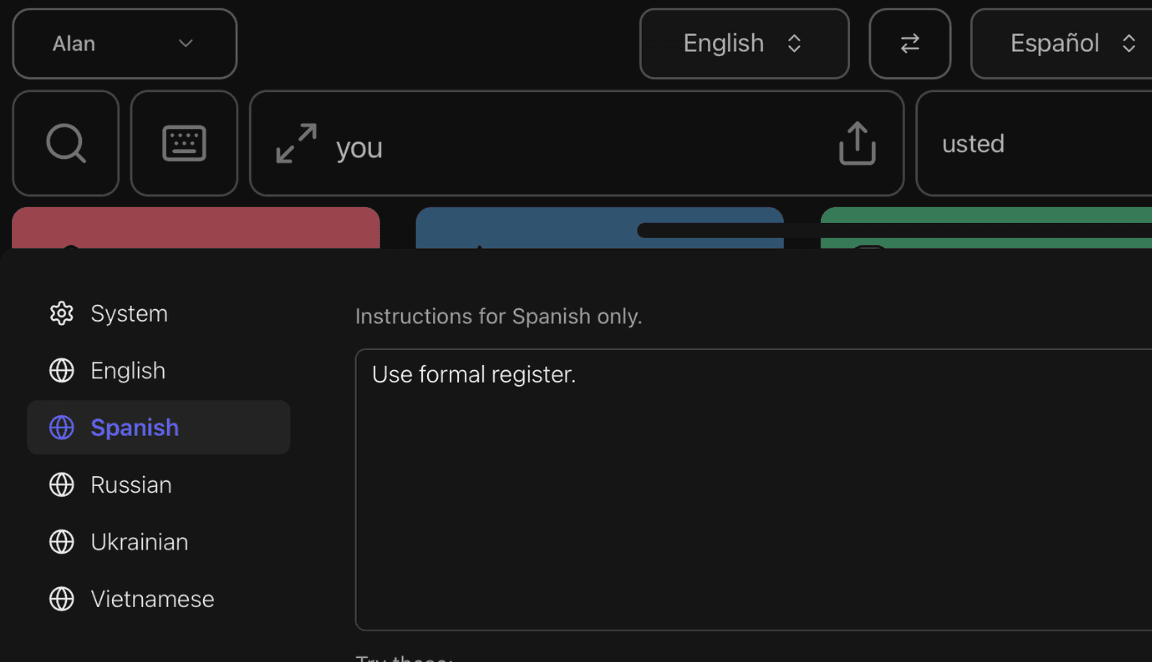
Next to the translation area, tap the settings button — “Translation style settings.”

The Custom Prompts dialog opens with two kinds of prompts:
System — applies to every target language when you don’t have a language-specific prompt.
Per-language — one tab per language (e.g. Vietnamese, Spanish, Korean). These apply only when translating into that language.
Setting prompts
System
Use this for global preferences, e.g. “Friendly, casual tone for all languages” or “Natural, conversational register.”Per-language
Select the language tab and type (or paste) instructions. For example:Vietnamese:
Speaking to elderly woman.
or:Polite particles: ạ, ơi, dạ.
or:Speaking to younger uncle.Spanish:
Use formal usted.
or:Use Mexican Spanish.
or:Use Spain Spanish; formal register.Korean:
Use informal polite speech (해요체).
or:-아요/-어요 endings; avoid -습니다.
or:Polite, natural for daily situations.
You can type freely or use the “Try these” suggestion buttons in the dialog; clicking one fills the text area so you can use it as-is or edit it.
How they’re applied
If you have a prompt for the current target language, that language prompt is used (and the system prompt is used as well if you set one).
If you don’t have a prompt for that language, only the system prompt is used (if set).
Prompts are trimmed and limited in length (e.g. 500 characters) so they stay focused and safe to send to the API.
Save your changes; the next time you use Translate Mode for that language, your instructions will be applied automatically.
Example Prompts by Language
Language | Example custom prompts |
|---|---|
Vietnamese | Speaking to elderly woman. / Speaking to younger uncle. / Polite particles: ạ, ơi, dạ. |
Spanish | Use formal usted. / Use Mexican Spanish. / Use Spain Spanish; formal register. |
Korean | Use informal polite speech (해요체). / -아요/-어요 endings; avoid -습니다. / Polite, natural for daily situations. |
Japanese | Use です/ます form (polite). / Not overly formal; daily conversation. |
Arabic | Modern Standard Arabic (MSA). / Levantine dialect. / Egyptian dialect; colloquial. |
French | Tu form, informal. / Vous form, polite. |
Russian | Use ты (informal you). / Use вы (formal/plural you). |
You can mix one system prompt (e.g. “Friendly, natural tone”) with language-specific prompts (e.g. “Use formal usted” for Spanish) so that every language has a baseline, and some have extra nuance.
Summary
Problem: Generic translations often ignore formality, dialect, and who you’re talking to, which can sound wrong or inappropriate.
Solution: Custom Prompts let you give the translator fixed instructions (tone, register, dialect, relationship) so Translate Mode consistently matches your situation.
How to use: Open “Translation style settings” next to the translation area, set a system prompt and/or per-language prompts, and save. Your instructions are then applied automatically whenever you use Translate Mode for that language.
With Custom Prompts, you’re not just “translated”—you’re translated the way you want to sound.